

DB Design #5 - Explain statement and Indexing
Analysing our queries using EXPLAIN statement and how we can use indexing to its maximum potential.

We looked at SELECT query in the previous article in our database design series. We also got a glimpse of analysing the performance of these queries.
EXPLAIN query and EXPLAIN ANALYZE query provides great insights on how our query statement performes and what functionality it uses behind the screens.
In this article, we’ll dive deep into performance analysis and how we can approach query optimization using this analysis.
We’ll also briefly look at indexing and when to index columns.
Downloading sample database
To perform and play around with SELECT query, you need a table or two with some columns and data. It is not ideal to do it from scratch.
To follow along with me, you can download a sample database dump which contains quite a number of table and columns and pre-loaded data in these tables.
This lets us skip the table creation part and jump straight to practising SELECT query.
You can download the database dump and follow the instructions given in this link to load the data to your local mysql setup.
Explain Query
To understand and analyse the results of the EXPLAIN query, we need to know the uses and types of indexing in relational databases.
Check out this amazing article by Blake Barnhill where he clearly explains the types of indexes, how indexing works and how our query gets optimized.
From the sample database we just got, let us take the Customers table. In the database, the customers table has 122 rows in total.
An enterprise-level software application will have millions of customers and our database should be optimized to retrieve data at the earliest with minimum latency.
Scenario: Our application needs the data of all the customers who have “ss” in their names. Fetch the first 25 results sorted alphabetically. We need to query our database to retrieve the data.
Sample select query
SELECT * FROM customers WHERE customerName LIKE ‘%ss%’ order by customerName limit 25;This query fetches 9 rows in the result. Note that we haven’t added any index to our table yet.
EXPLAIN query shows how Mysql executes given query.
Query - EXPLAIN
Let us check how the SELECT QUERY mentioned above executes with the help of EXPLAIN QUERY.
EXPLAIN SELECT * FROM customers WHERE customerName LIKE ‘%ss%’ order by customerName limit 25;
Notice the rows column in this screenshot. This represents the number of rows scanned by the database to retrieve the data we need.
These results are not easy to understand at first sight, so let’s take a closer look at each one of them:
id: this is just the sequential identifier for each of the queries within the SELECT.select_type: the type of SELECT query. This field can take a number of different values, so we will focus on the most important ones:SIMPLE: a simple query without subqueries or unionsPRIMARY: the select is in the outermost query in a joinDERIVED: the select is a part of a subquery within a fromSUBQUERY: the first select in a subqueryUNION: the select is the second or later statement of a union.
table: the table referred to by the row.type: this field is how MySQL joins the tables used. This is probably the most important field in the explain output. It can indicate missing indexes and it can also show how the query should be rewritten. The possible values for this field are the following (ordered from the best type to the worst):system: the table has zero or one row.const: the table has only one matching row which is indexed. The is the fastest type of join.eq_ref: all parts of the index are being used by the join and the index is either PRIMARY_KEY or UNIQUE NOT NULL.ref: all the matching rows of an index column are read for each combination of rows from the previous table. This type of join normally appears for indexed columns compared with=or<=>operators.fulltext: the join uses the table FULLTEXT index.ref_or_null: this is the same as ref but also contains rows with a NULL value from the column.index_merge: the join uses a list of indexes to produce the result set. The KEY column of theexplainwill contain the keys used.unique_subquery: an IN subquery returns only one result from the table and makes use of the primary key.range: an index is used to find matching rows in a specific range.index: the entire index tree is scanned to find matching rows.all: the entire table is scanned to find matching rows for the join. This is the worst type of join and often indicates the lack of appropriate indexes on the table.
possible_keys: shows the keys that can be used by MySQL to find rows from the table. These keys may or may not be used in practice.keys: indicates the actual index used by MySQL. MySQL always looks for an optimal key that can be used for the query. While joining many tables, it may figure out some other keys which are not listed inpossible_keysbut are more optimal.key_len: indicates the length of the index the query optimizer chose to use.ref: Shows the columns or constants that are compared to the index named in the key column.rows: lists the number of records that were examined to produce the output. This is a very important indicator; the fewer records examined, the better.Extra: contains additional information. Values such asUsing filesortorUsing temporaryin this column may indicate a troublesome query.
Sources:
Official MYSQL page: https://dev.mysql.com/doc/refman/5.5/en/explain-output.html
https://www.sitepoint.com/mysql-performance-indexes-explain/
EXPLAIN ANALYZE
The EXPLAIN ANALYZE statement gives a hierarchical output that shows detailed information about the query execution, such as cost value, actual time, loops, etc.
With this result, we will know the order of operations that the engine has performed to execute the given query
Query - EXPLAIN ANALYZE
EXPLAIN ANALYZE SELECT * FROM customers WHERE customerName LIKE ‘%ss%’ order by customerName limit 25;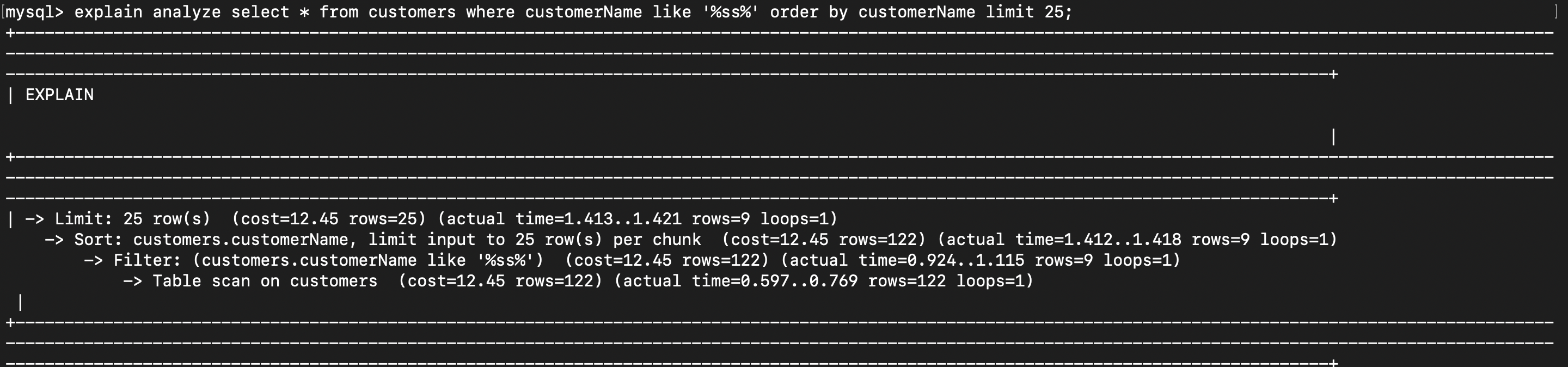
Order of execution
Table scan for all customers
Filtering the results to find names matching “ss”.
Sorting the result dataset
Limiting the dataset to 25.
Also analyse the time taken, number of loops, and cost of each operation from the result.
Indexing the customerName column
Now, let us create an index for the customerName column. And check the analysis of the same query after indexing.
Query
CREATE INDEX customerName_idx ON customers (customerName);This will create an index for the column “customerName”.
Performance update
Explain statement
EXPLAIN SELECT * FROM customers WHERE customerName LIKE ‘%ss%’ order by customerName limit 25;The explain statement mentioned above will give the following result.

Notice the number of rows scanned for the same query and the key used for search.
Explain analyze
EXPLAIN ANALYZE SELECT * FROM customers WHERE customerName LIKE ‘%ss%’ order by customerName limit 25;The explain analyze statement mentioned above will give the following result.
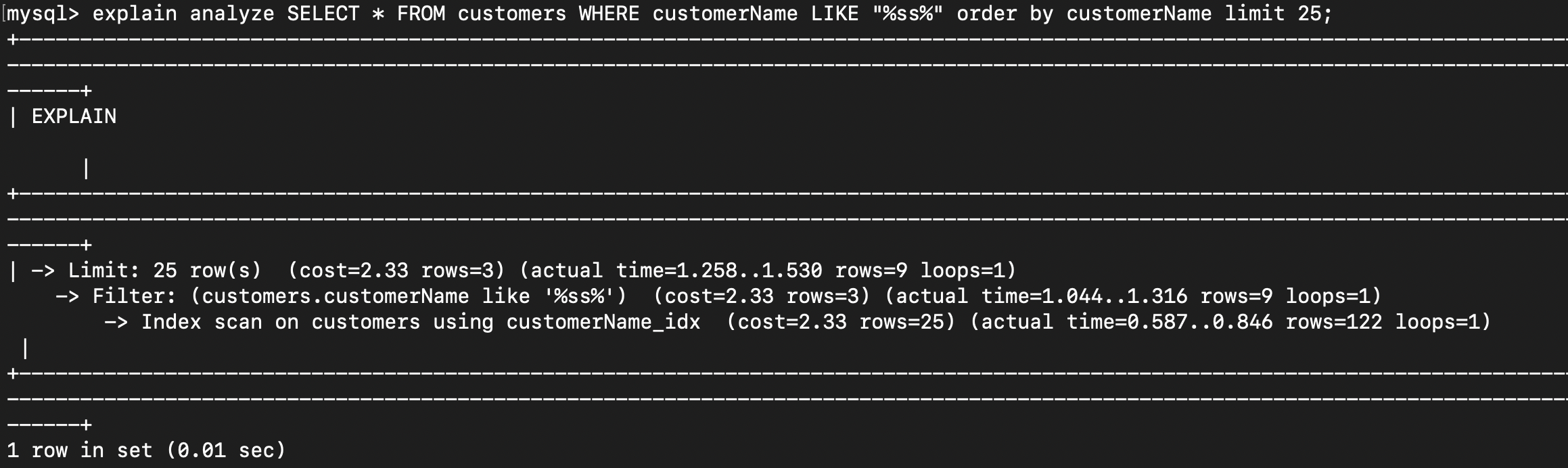
Compare this with the previous analysis we did. We have completely skipped one step of execution as a result of indexing the column.
Know when to index
It is obvious that indexing a column makes the query execute faster and yields better query performance in the database.
Why can’t we index all the columns to make everything faster?
Indexing takes up additional storage to store the indices of all the rows.
Inserting a new row to the indexed column takes additional time
It is not advisable to index a column that has the potential to get updated rapidly.
We have to think about the use cases of the application and index the columns that will actually help us optimize the application.
If a particular set of data is not going to be queried often, then indexing the column might result in wastage of memory.
That’s it for performance analysis of the select statement. Make sure you play around with the EXPLAIN and EXPLAIN ANALYZE statements.
Create indexes to understand how it affects the query performance.
We’ll look at how table joins will be executed and how it can be optimized in a future article.
Until next time!